Category: Blog

Your blog category

  • Automating Post-Delivery Feedback

    Automating Post-Delivery Feedback

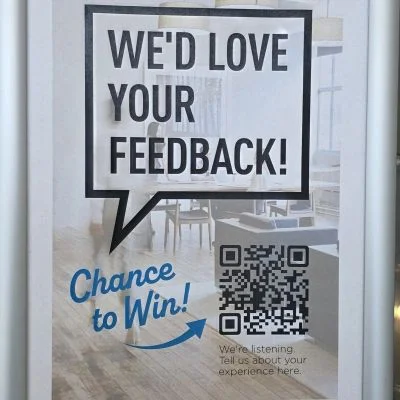
    A poster asking for feedback in exchange for a chance to win.

    If you’ve ever ordered something online, received a service, or had a contractor finish a job, you’ve probably gotten one of those follow-up emails asking, “How did we do?” Sometimes they’re seamless. Sometimes they’re a forgotten afterthought sent three weeks later when you’ve already moved on emotionally.

    Here’s the thing: collecting feedback after delivery isn’t just a nice-to-have. It’s one of the highest-ROI touchpoints in your entire customer journey — and most businesses either skip it entirely or do it so badly that it might as well not exist.

    Let’s break down why this matters, and more importantly, how you can automate it without a developer on retainer.

    The Feedback Gap Is Real (And Expensive)

    Think about the last time you had a genuinely bad experience with a product or service. Did the company ever ask you about it? Did you proactively reach out?

    Probably not. And that’s the problem.

    Research consistently shows that for every customer who complains, roughly 26 others stay silent — and then quietly churn, leave a Google review six months later, or just tell their friends. The companies that close this gap aren’t doing anything magical. They’re just asking at the right time, in the right way.

    The “right time” matters more than most people realize. Feedback collected within 24–48 hours of delivery is dramatically more accurate and actionable than a survey sent a week later. Memory fades. Emotions settle. The window for capturing authentic sentiment is surprisingly short.

    Why Most Feedback Processes Fail?

    Here’s what typically happens in most small-to-mid-sized businesses:

    1. Product ships or service completes
    2. Someone intends to follow up
    3. Life happens
    4. Nothing gets sent — or it goes out two weeks later with a generic “Hope you loved it!”

    The fix isn’t hiring someone to manually send emails. The fix is removing humans from the trigger entirely.

    Enter the Automated Feedback Form.

    This is where it gets practical. Here’s a real-world example of how a simple automation loop works:

    Scenario: You run a home cleaning service. A cleaner finishes a job at 2pm on a Tuesday.

    With a basic automation setup (think: Zapier + Google Forms, or a tool like Typeform connected to your CRM), here’s what happens automatically:

    2:00 PM — Job marked “complete” in your scheduling software

    2:30 PM — Automation triggers, sends a personalized email or SMS to the client

    2:31 PM — Client opens their phone and sees: “Hi Sarah, thanks for having us today! We’d love 60 seconds of your feedback.”

    2:35 PM — Sarah fills out a 4-question form while the experience is fresh

    2:36 PM — You receive a notification. If she rated anything below a 3, a separate alert flags it for immediate follow-up.

    That entire sequence? Built once, runs forever.

    What the Form Actually Looks Like?

    Here’s an example of a post-delivery feedback form that hits the right balance — short enough to complete, specific enough to be useful:

    How did we do today?
    Takes about 60 seconds

    1. Overall, how satisfied were you with today’s service? ⭐⭐⭐⭐⭐ (1–5 stars)

    2. Was everything completed to your expectations? ○ Yes, everything looked great ○ Most things were good, minor issues ○ There were some problems I’d like to flag

    3. How likely are you to book with us again? (Scale of 1–10)

    4. Anything specific we should know? [Open text field — optional]

    [Submit Feedback →]

    Simple. Four questions. No login required. No essay prompts. This is the format that actually gets completed.

    The open text field is optional — and that’s intentional. You want volume on the structured questions, and you let the detailed comments come from people who are genuinely motivated to share them. Those tend to be your most passionate customers in both directions.

    (You can also create a longer form as needed, add dynamic structure, and customize it based on the customer’s responses. Longer forms are out of scope for this Blog.)

    The Automation Stack (Without the Tech Headache)

    You don’t need a custom-built software platform. A lean version of this works with tools most businesses already have access to:

    • Form: Google Forms, Typeform, or Tally (free tiers cover most small businesses)
    • Trigger: Zapier or Make (formerly Integromat) connects your job management or e-commerce tool to the form delivery
    • Delivery: Gmail, Mailchimp, or SMS via Twilio
    • Alerts: Slack or email notification when a low score comes in

    The whole setup can take an afternoon to configure. Once it’s live, you’re collecting structured data on every single delivery without lifting a finger. 
    Not everyone will fill out the form, but a significant portion of the customer base will.

    Many companies have started offering incentives such as gift cards, discount coupons, a chance to win a huge prize, etc. Generally, these are companies with robust Marketing departments. It doesn’t have to be. Using the above stack, anyone can implement a robust feedback system.

    What to Actually Do With the Data?

    Collecting feedback without acting on it is arguably worse than not collecting it at all — because now you know about problems you’re ignoring.

    A few habits worth building:

    • Weekly review of aggregate scores. Watch for trends, not individual data points. 
    • Immediate response protocol for scores below a threshold. A quick “We’re sorry to hear that — can we make it right?” message sent within the hour can dramatically change outcomes.
    • Quarterly analysis of open-text responses. Read them. Themes will emerge that your quantitative scores don’t capture.
    • Use 5-star responses as social proof fuel. With permission, these become testimonials, case studies, or review site content.
    • Survey Outlier: Keeping an eye on outliers also helps. Sometimes that is where your next service/product improvement comes from.
    • Keeping an eye on the NPS score can also tell us about overall business health.

    NPS Score: Net Promoter Score (NPS) or Customer Net Promoter Score (cNPS) is a market research metric that is based on a single survey question asking respondents to rate the likelihood that they would recommend a company, product, or service to a friend or colleague. (source)

    The Bigger Picture.

    What Starbucks figured out with their seasonal cups, great service businesses figure out with feedback loops: consistent, well-timed touchpoints compound over time. One feedback form doesn’t transform your business. A thousand of them, analyzed thoughtfully over 12 months, absolutely can.

    The automation removes the friction. The form removes the ambiguity. What’s left is just a steady stream of real customer signal — the kind that tells you what’s working before your competitors figure it out.

    The businesses that listen systematically beat the ones that listen occasionally. And right now, the bar for “systematic” is honestly pretty low. A form, a trigger, and 30 minutes of setup are enough to put you ahead of most.

    So the question isn’t really whether to automate your feedback collection. It’s why you haven’t yet. Would you like to? We help people automate marketing, fill out on this page and get started.

  • The Best Out-of-Home Ads in Cleveland – Misny makes them Pay.

    The Best Out-of-Home Ads in Cleveland – Misny makes them Pay.

    Keep An Eye Out For Motorcycles - roadside sign with Tim Misny's eye raise.

    If you live in Cleveland, you cannot get away from Tim Misny, and if you are not from Cleveland, you have no Idea what I am talking about. I lived and worked in Cleveland, so I am definitely aware of his presence there. I also know he also runs ads in Akron and other areas too.

    Quick introduction: Tim is a Personal Injury lawyer from the suburbs of Cleveland. Here is his Wikipedia if interested  Wiki Page

    Is he the most famous lawyer in the Cleveland area? I think so. Is he Iconic, I asked Chat GPT what it means to be iconic, and here is what it said:

    “Something becomes iconic when it rises above being ordinary and becomes a widely recognized symbol with lasting impact.”

    Is Tim a Cleveland Icon? Yes, he is.

    Last year, I met a lady who worked for the State Attorney General’s office. Her daughter, who was in middle school, came home and asked her where she works. She replied: Ohio’s highest lawyer’s office. The daughter responded Oh you mean Tim Misny?

    Every year Tim runs multiple Out-Of-home ads. Whoever does the campaign understands the TOP of Funnel (TOFU) marketing. Let me explain in the marketing funnel (my post) at the very top; we have awareness. Top-of-funnel ads are emotion-based ads and generally don’t have a CTA (call to action). Think of Nike showing athletes in their ads and not actually asking to buy shoes or anything else. They are just building awareness, and the sales come as the awareness goes up, so if you are an athlete or aspiring athlete (who doesn’t have six-pack abs, right :), you associate Nike with sports. And if the ad has your favorite athlete in it, you will strongly prefer Nike.

    Why is that even important for marketing?
    Fair question: The 95/5 rule, at any given time 95% of the people are not in the market to buy whatever you are selling. So, if you run an awareness campaign, they will keep you at the top of their minds when it’s time to decide to buy. The best thing that can happen to any brand is to have it as an option when people are about to make a purchase.

    I have been taught that when a customer makes a buying decision, they only use two brain cells for it, and how we decide is whatever comes 1st to your mind is what we buy or at least we would try them. So, seeing Tim’s face plastered over billboards has become iconic for Cleveland.

    The campaign basically checks all the right marketing boxes for a Top of the Funnel campaign for Tim:

    Positioning – Tim Misny will make them pay.

    Most Billboards no longer mention what Misny does.

    Christmas Billboard from Tim Misny that reads ALL I WANT FOR CHRISTMAS IS YOU TO BE SAFE!

    Against what? Medical Errors? Bad Accidents?

    As an observer, your brain will make the connection, since you have seen the Billboard 100’s of time

    Check this Reddit thread and check the few top comments, you will see the above statement in action – Reddit Thread.

    The campaign brilliantly builds the brand. Misny had a personal brand before most people knew what a personal brand was.

    In the ever-increasing digital marketing era, this is one of the campaigns that I have seen and probably done wonders for Tim Misny. He has also done some TV ads, but I have not seen the ad on TV. I saw it on YouTube. Here is a 15-second ad, which was based on a real story.

    Will I ever need his service? I hope not. But if I ever need a personal injury lawyer, I know he is there.

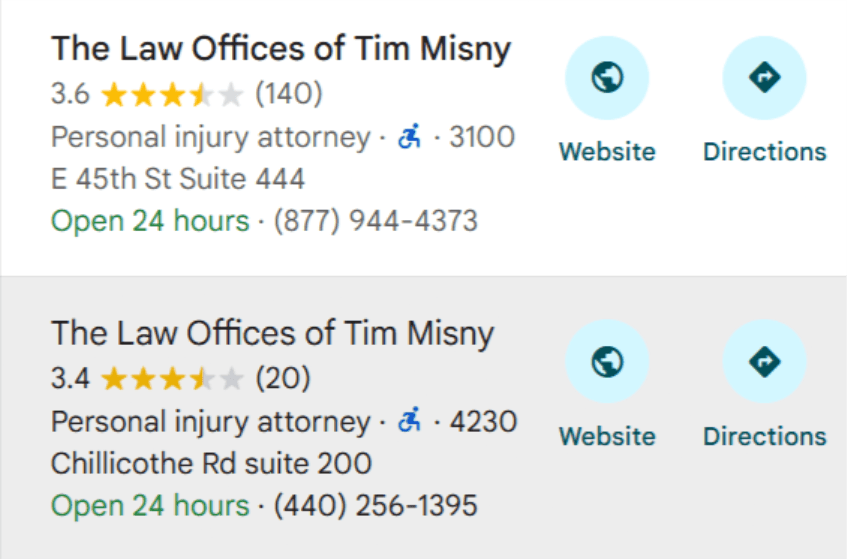
    Screenshot of Google business profile of Tim Misny's office with one office being 3.6 stars and 2nd being 3.4 stars

    I would also like to mention that his online reviews are not the best. I found two profiles on Google maps with 3.6- and 3.4-star ratings. Seems like he is very selective with his cases and wouldn’t take just any case. As always, marketing aside, we need to do our due diligence before buying into any brand, especially in the times when the stakes are high, and you need a lawyer for anything.

  • Marketing Funnel 101: What is a Marketing Funnel?

    Marketing Funnel 101: What is a Marketing Funnel?

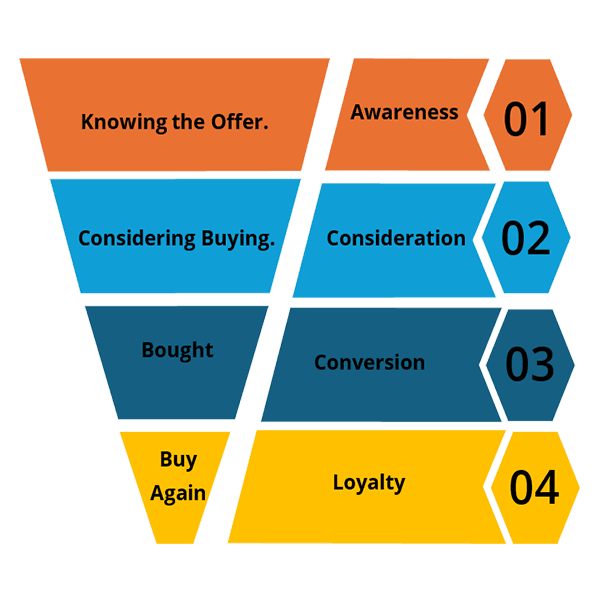
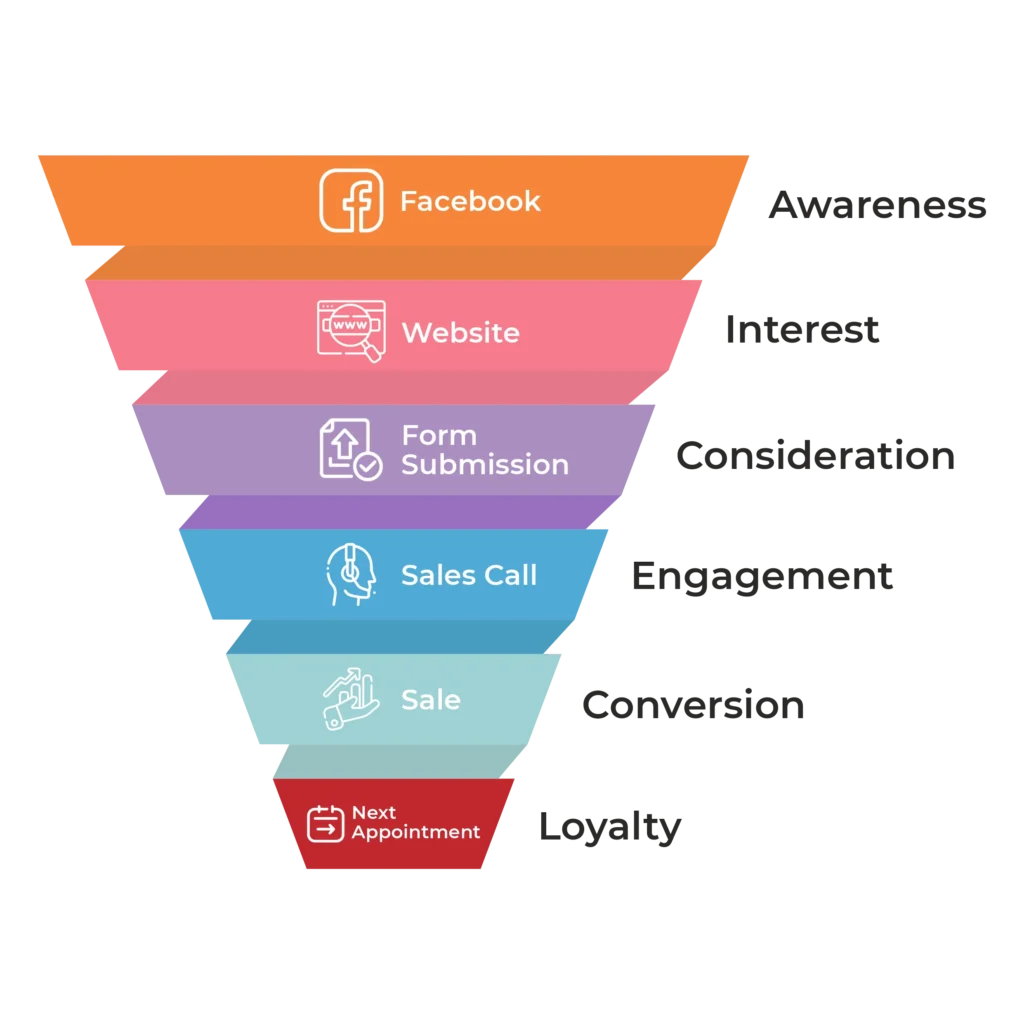
    Simply put, it is the customer’s marketing journey from discovering what you offer to buying and becoming a loyal customer.

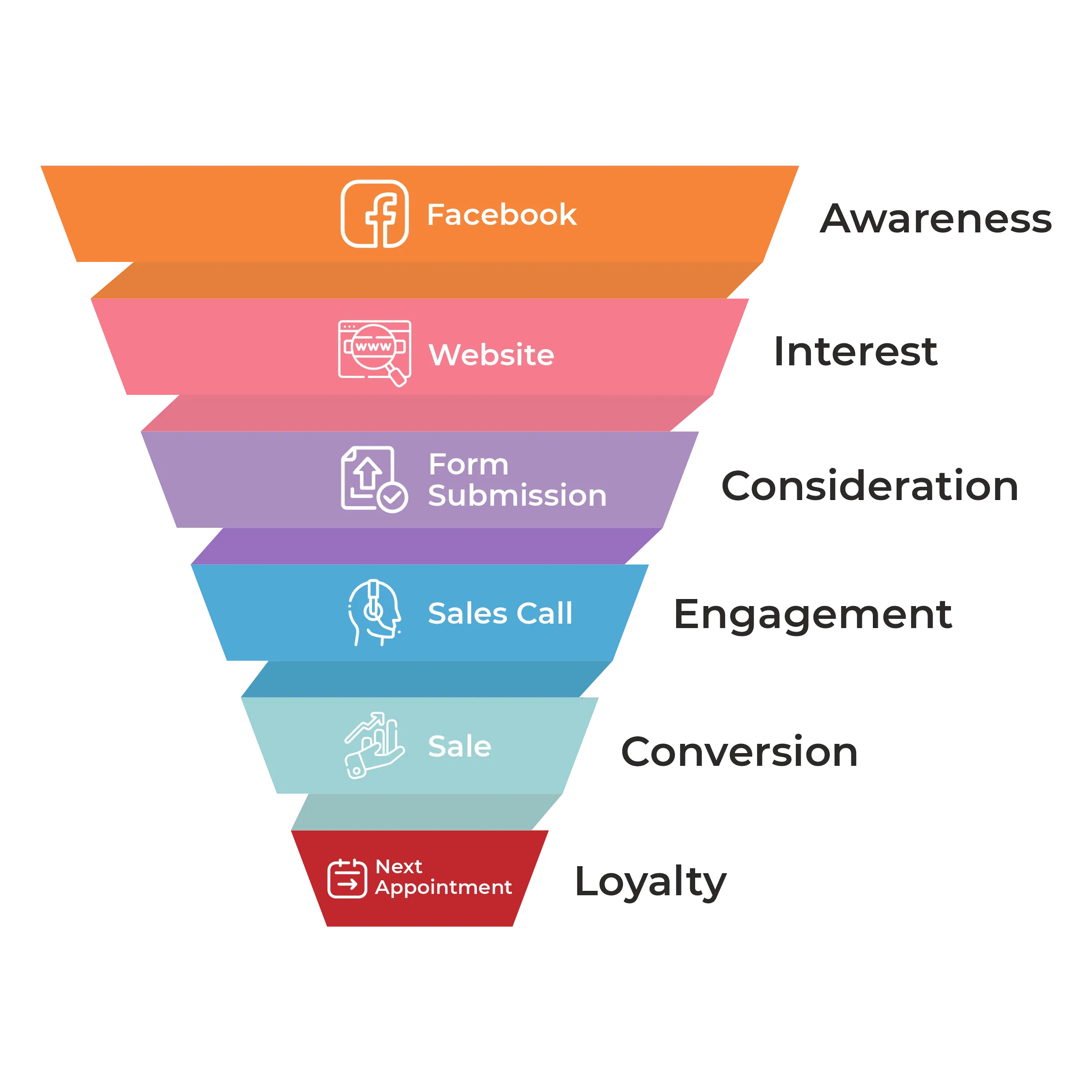
    The above funnel is generic, and most people need to use it to create their own custom funnel. So, let’s say you are a local cleaning company. You post daily on local Facebook groups. You also have a website.  
    From the group, someone checks your posts and clicks on the website link inside the post. Now that they are directed to your website, they check your services and contact you through the contact form. You call them and give them a quote. They accept the quote, and you schedule the service for next week. On the day, your employee goes and renders the service and collects the payment. They also schedule another cleaning service for next month. So, how would your funnel look? 


    Facebook Funnel to Website to form to sales to next appointment

    As you can see, I added two new stages to our new funnel vs the original generic funnel. Funnels are just guidelines; we need to customize them to fit our needs. At every stage, we lose customers.  
    Let’s say we have 100 people who saw the offer. But only 20 people clicked it, and of those, only 10 visited your website and filled out the form. You quoted all 10, but only eight people bought and became customers.    

    You can do the quick calculations and find out what your conversion percentage is from one stage to another. 
    If you have everything in place and are correctly collecting the data, the funnel will talk to you. It’s Magical. Let me explain, let us assume we have 100% conversion from awareness to consideration. You have a few problems: 1. You are probably underpriced. 2. You don’t have enough awareness. 3. You have maxed out your market. 

    Another example: If you have an issue between the Consideration and conversion part of the funnel. You might need to troubleshoot and run tests to identify what can be improved to fix the problem.  

    This all falls into your marketing strategy, and a funnel will not work correctly if you have not done your segmentation. Why, you ask? Think if your customers are divided into two segments, for example, homeowners and business owners, the funnel will be different for both the segments. So, before we do Funnel we need to do the Segmentation before doing a marketing funnel. 

    Amaninder Singh

  • Search Engine Optimization

    Search Engine Optimization

    Are You Losing Sales to Competitors?

    Let’s discuss how your website can help you get more traffic that could turn into potential Leads.
    Let’s go ahead and make it so your potential customers connect with your business. Unlock Your Business Potential with Expert SEO Services! 

    Boost Your Rankings • Increase Traffic • Grow Your Revenue 

    What is SEO?

    Search engine optimization (SEO) is the process of enhancing your online presence through various strategies aimed at increasing your organic search traffic, making it easier for customers to find and connect with your business.

    Why do you need SEO?

    Let’s Imagine your washing machine just broke, and you must either get it repaired or buy a new one. First, you will grab your phone and search for what is wrong with your machine and whether you can fix it yourself.

    Now, imagine you are a repair expert in the area with a website and a blog that addresses the issue the person is searching for. You provide a comprehensive guide outlining three steps for troubleshooting the problem. If they still need help, your blog offers a solution through a phone number for expert advice. 

    Now, you have a potential lead. What do you think, can you make a sale?

    Now imagine that the issue with the machine is something that you, as an expert, have seen time after time with standard washing machines, and having the blog on your website will drive all the traffic to your website, and in turn, sales will go up.

    Why SEO Is Important for Your Business

    In today’s digital landscape, SEO (Search Engine Optimization) plays a vital role in the success of your business. Here’s why:

    Increased Visibility and Traffic​

    SEO helps your website rank higher in search engine results pages (SERPs), making it more visible to potential customers. Higher visibility leads to increased website traffic, bringing more potential clients to your
    business.

    Cost-Effective Marketing

    Compared to traditional advertising methods, SEO is highly cost-effective and puts you in control. It targets users actively searching for your products or services online, ensuring that your marketing efforts reach an audience already interested in your offer.

    Builds Credibility and Trust

    Websites that rank higher on search engines are often perceived as more trustworthy and credible. Implementing effective SEO strategies helps establish your business as a reputable and authoritative source in your industry.

    Better User Experience

    SEO involves optimizing your website’s structure, content, and performance. This helps search engines understand your site better and enhances user experience, making it easier for visitors to navigate and find the information they need.​

    Competitive Advantage

    In a competitive market, SEO gives you an edge over your competitors. By ranking higher and attracting more traffic, you can capture a larger market share and establish your brand as a leader in your field.

    Long-Term Results

    SEO provides sustainable, long-term results. Unlike paid advertising, which stops delivering once you stop paying, the benefits of SEO continue to grow over time as your website gains more authority and higher rankings.

    Measurable Results

    SEO offers measurable and trackable results. Using tools like Google Analytics, you can monitor your website’s traffic, user behaviour, and conversion rates, allowing you to refine your strategies and achieve better outcomes.

    Local SEO for Targeted Reach

    For businesses targeting local customers, local SEO is essential. It helps you appear in local search results, making it easier for nearby customers to find and choose your business.

    Tasks In SEO.

    Business Goals


    Any Marketing service is done with the business goals in mind; the same applies to SEO. SEO is a long-term game; if you need quick results, other strategies and tactics are employed. 

    Our SEO experts conduct thorough keyword research to identify your business’s most relevant and high-traffic keywords. We develop a strategic plan to target these keywords, ensuring your website ranks for the terms your potential customers are searching for.

    We optimize your website’s content, meta tags, headers, images, and URLs to improve its relevance and search engine friendliness. Our on-page SEO techniques help search engines understand your website’s content, leading to better rankings.

    We’ll be able to perform a comprehensive technical SEO audit to identify and fix issues hindering your website’s performance. Our services include improving site speed and mobile-friendliness and ensuring proper indexing and crawl-ability.

    Quality content is the backbone of effective SEO. Our team of skilled writers creates engaging, informative, and SEO-friendly content that resonates with your audience and encourages them to take action.

    We build high-quality backlinks from reputable websites to enhance your site’s authority and credibility. Our link-building strategies help improve your site’s ranking and drive more organic traffic.

    For businesses targeting a local audience, we provide specialized local SEO services. We optimize your Google My Business profile, ensure accurate NAP (Name, Address, Phone number) information, and implement local citation strategies to boost your visibility in local search results.

    Any Marketing service is done with the business goals in mind; the same applies to SEO. SEO is a long-term game; if you need quick results, other strategies and tactics are employed. 

    Our SEO experts conduct thorough keyword research to identify your business’s most relevant and high-traffic keywords. We develop a strategic plan to target these keywords, ensuring your website ranks for the terms your potential customers are searching for.

    We optimize your website’s content, meta tags, headers, images, and URLs to improve its relevance and search engine friendliness. Our on-page SEO techniques help search engines understand your website’s content, leading to better rankings.

    We’ll be able to perform a comprehensive technical SEO audit to identify and fix issues hindering your website’s performance. Our services include improving site speed and mobile-friendliness and ensuring proper indexing and crawl-ability.

    Quality content is the backbone of effective SEO. Our team of skilled writers creates engaging, informative, and SEO-friendly content that resonates with your audience and encourages them to take action.

    We build high-quality backlinks from reputable websites to enhance your site’s authority and credibility. Our link-building strategies help improve your site’s ranking and drive more organic traffic.

    For businesses targeting a local audience, we provide specialized local SEO services. We optimize your Google My Business profile, ensure accurate NAP (Name, Address, Phone number) information, and implement local citation strategies to boost your visibility in local search results.

  • How to Set Up a Business Email with Your Website Domain 

    How to Set Up a Business Email with Your Website Domain 

    You’ve launched your business website—great job! Now it’s time to take the next step: setting up a professional email address that matches your website’s domain. Instead of using a personal email like yourbusiness@gmail.com, you can create one that looks more professional, like info@yourbusiness.com

    Having a business email with your own domain helps you look more trustworthy, serious, and organized. It also makes a strong first impression on your customers and partners. People are more likely to respond to an email that looks official. 

    The good news is you don’t need to be a tech expert to set it up. In this guide, we’ll walk you through simple steps to create your own business email address. Whether you’re using your web hosting provider or a service like Google Workspace or Microsoft 365, we’ll help you get everything running smoothly. 

    Why Use a Business Email with Your Website Domain? 

    Using a business email that matches your website domain (like you@yourbusiness.com) makes a big difference in how people see your brand. Here’s why it’s important: 

    ✅ Looks More Professional: When customers see an email like info@yourbusiness.com instead of yourbusiness@gmail.com, it shows that you take your business seriously. 

    ✅ Builds Trust: A custom email address helps your business look more trustworthy. People are more likely to respond to your messages when they know it’s coming from a real business. 

    ✅ Stronger Branding: Every time you send an email, your domain name is front and center. It reminds people of your brand and keeps it top of mind. 

    ✅ Better Security and Control: With a business email, you have more control over user access, security settings, and backups—especially when your team grows. 

    ✅ Avoids the Spam Folder: Emails from free accounts are more likely to end up in spam. Business email addresses are more trusted by inboxes and spam filters. 

    What You’ll Need Before You Start 

    Before setting up your business email, make sure you have the following: 

    ✅ 1. A Domain Name: You need to own a domain (like yourbusiness.com). You can buy it from providers like Namecheap or GoDaddy. 

    ✅ 2. Access to Your Domain Settings: This is where you’ll make changes to connect your email. You’ll find these settings in the account where you bought your domain. 

    ✅ 3. Email Hosting: You need a service to manage your emails. You can either use the free email option from your web hosting provider or choose a paid service like Google Workspace or Microsoft 365. 

    ✅ 4. (Optional) A Web Hosting Plan: Some hosting providers include email services. This step is only needed if you’re using your hosting provider for email. 

    Step 1: Choose How You Want to Host Your Email 

    The first step is to decide where your business email will be hosted. This means choosing a service that will handle sending, receiving, and storing your emails. You have two main options: 

    ✅ Option 1: Use Your Web Hosting Provider (Free or Included) 

    Some web hosting companies like Bluehost, Hostinger, or Site Ground include free business email with your hosting plan. This is a good choice if you’re just starting out and want a basic setup. 

    Pros: 

    • Often free or included in your hosting 
    • Easy to set up in your hosting dashboard 

    Cons: 

    • Fewer features 
    • May not be as reliable for long-term use 

    ✅ Option 2: Use a Dedicated Email Service (Paid but Professional) 

    Services like Google Workspace or Microsoft 365 offer powerful business email tools with great features like storage, spam protection, and calendar integration. 

    Pros: 

    • Highly reliable and secure 
    • Professional features (shared calendars, cloud storage, etc.) 
    • Better customer support 

    Cons: 

    • Monthly cost (usually $6–$12 per user) 

    Step 2: Create the Email Account 

    Depending on the option you chose: 

    If Using Web Hosting (e.g., cPanel): 

    1. Log into your hosting control panel 
    1. Go to the Email Accounts section 
    1. Click “Create” and enter your desired address (e.g., info@yourdomain.com
    1. Set a strong password and allocate storage 
    1. Access your inbox via webmail or connect it to an email app 

    If Using Google Workspace: 

    1. Sign up at Google Workspace 
    1. Add your domain and verify ownership (by adding a TXT record in DNS) 
    1. Update your domain’s MX records with values provided by Google 
    1. Create user accounts (e.g., yourname@yourdomain.com
    1. Use Gmail to send and receive emails 

    Step 3: Configure DNS Records Properly 

    Email won’t work without the correct DNS settings. Here’s what you need to set: 

    • MX Records: Direct your domain’s email to the correct server 
    • SPF Record: Authorizes your mail server to send emails on your behalf 
    • DKIM: Adds a digital signature to prevent spoofing 
    • DMARC: Helps protect your domain from phishing and fraud 

    These settings are usually found in your domain registrar or hosting provider’s dashboard under “DNS” or “Zone Editor.” 

    Step 4: Connect Your Email to Mail Clients 

    You can use your new business email in popular email clients like: 

    • Gmail (with external account setup) 
    • Outlook 
    • Apple Mail 
    • Thunderbird 

    Use IMAP or SMTP settings provided by your email host. Most providers have guides with the exact details. 

    Step 5: Test Everything 

    • Send a test email to and from your new address 
    • Check spam folders 
    • Make sure your signature and sender name are correct 
    • If using multiple devices, confirm sync works across all 

    Step 6: Add Professional Touches 

    • Set up email signatures with your name, title, and logo 
    • Create aliases (e.g., support@, sales@) if your service allows 
    • Set up autoresponders and email forwarding as needed 

    Conclusion 

    Setting up a professional business email address using your website domain is one of the most important steps you can take to build credibility and trust. It shows your customers and clients that you are serious about your business and helps create a strong and consistent brand image. A custom email address not only looks professional but also improves communication and helps keep your messages out of spam folders. 

    Whether you decide to use the free email option included with your web hosting plan or invest in a paid service like Google Workspace or Microsoft 365, the process is straightforward. Choosing the right email hosting provider depends on your business needs, budget, and the features you want to have. 

    By setting up a business email with your domain, you make your business look more polished and reliable. If you would like expert help with setting up your domain-based email or managing your digital presence, The Sun Media House is here to support you. Our team can handle the setup process from start to finish so you can focus on running and growing your business. Contact us today to get started.

  • How to Fix 404 Errors on WordPress (Beginner-Friendly Guide) 

    How to Fix 404 Errors on WordPress (Beginner-Friendly Guide) 

    Have you ever clicked on a link on a website and seen a message that says, “Page Not Found”? This is called a 404 error. It means the page you are looking for is missing or has been moved. 

    This can happen on any website, even on WordPress websites. Sometimes the page was deleted, or the link was typed wrong, or the website owner changed the name of the page. 

    When people see this error, they may feel confused or upset because they cannot find what they are looking for. It also makes the website look bad and can stop people from coming back. 

    But don’t worry! If you have a WordPress website, fixing this problem is not hard. In this guide, I will show you in a simple way how to find these broken pages and how to fix them. I will also tell you how to stop this problem from happening again. 

    Let’s learn how to fix 404 errors and make your website better and easy for everyone to use! 

    What is a 404 Error in WordPress? 

    A 404 error in WordPress means the page someone is trying to visit on your website cannot be found. It’s like reaching a closed door when you expected it to be open. 

    This happens when a link is broken, a page has been deleted, or the page address (URL) has been changed without setting up a new link for it. Instead of showing the right page, WordPress shows a message like “Sorry, this page doesn’t exist” or “Page Not Found.” 

    For example, if you had a page called www.mywebsite.com/about-us but you deleted it or changed it to www.mywebsite.com/about, anyone who clicks the old link will see a 404 error. 

    These errors can happen for many reasons like: 

    • Deleting old pages or posts 
    • Changing page URLs without a redirect 
    • Mistyped links 
    • Problems with website settings or plugins 

    While 404 errors are common and normal sometimes, having too many on your site is not good. They can annoy visitors and make your website look unprofessional. It can also hurt your website’s ranking on search engines like Google. 

    That’s why it’s important to find and fix 404 errors on your WordPress site to give your visitors a smooth and happy experience. 

    Why 404 Errors Matter 

    404 errors may look like a small problem, but they can cause big trouble for your website if not fixed. 

    When visitors come to your website, they expect to find the information they are looking for quickly and easily. If they see a “Page Not Found” error, they might feel confused, upset, or think your website is broken. Most people will leave the site right away and may never come back. 

    404 errors also matter for your website’s ranking on Google. Search engines like Google want to show good and helpful websites to people. If your site has too many broken links or missing pages, Google might think your site is not well cared for and push it lower in search results. 

    This means fewer people will find your website. 

    In short, 404 errors matter because: 

    • They create a bad experience for visitors 
    • They can make your website look unprofessional 
    • They may lower your Google ranking 
    • They can cause you to lose customers or readers 

    That’s why it’s very important to check your WordPress website for 404 errors and fix them as soon as possible. It helps keep your website clean, trusted, and easy to use for everyone. 

    Common Causes of 404 Errors in WordPress 

    There are many reasons why 404 errors can happen on a WordPress website. Most of the time, they are caused by small mistakes or changes made on the site. Here are some common reasons: 

    1. Deleted Pages or Posts: If you delete a page or blog post from your website, but other people still have the old link saved, they will see a 404 error when they try to visit it. 
    1. Changed Page URLs: Sometimes you might change the name or address (URL) of a page. If you don’t update the link everywhere, visitors who click the old link will get a 404 error. 
    1. Incorrect or Broken Links: A typing mistake in the link or copying the wrong URL can lead visitors to a page that doesn’t exist. 
    1. Plugin or Theme Issues: Some WordPress plugins or themes can change the way your website’s links work. If something goes wrong, it can cause 404 errors. 
    1. Permalink Settings Problem: Permalinks are the structure of your website links. If your permalink settings in WordPress are not set properly, your pages may show 404 errors. 
    1. Moved Website to a New Domain: If you moved your website to a new domain or hosting but forgot to set up proper redirects, old links can cause 404 errors. 

    How to Fix 404 Errors on WordPress (Step-by-Step Guide) 

    If your website is showing 404 errors, don’t panic! These errors are very common in WordPress and can be fixed easily if you follow the right steps. Let’s look at different ways to fix them: 

    1. Reset Your Permalinks 

    Sometimes your website links (called permalinks) get broken or confused. A simple reset can fix the problem. 

    Steps to Reset Permalinks: 

    • Login to your WordPress Dashboard 
    • Go to SettingsPermalinks 
    • You don’t need to change anything 
    • Just click the Save Changes button 

    This step refreshes your link structure and can solve many 404 errors quickly. 

    2. Create 301 Redirects 

    If you have deleted a page or changed its URL, visitors who use the old link will see a 404 error. To fix this, you can create a 301 Redirect. This means anyone who clicks the old link will be sent to the new page automatically. 

    How to Create a Redirect: 

    • Install a free plugin like Redirection 
    • Go to ToolsRedirection 
    • Add the old URL (the page that is missing) 
    • Add the new URL (the correct page you want visitors to see) 

    This is good for your website because it helps users and keeps your SEO strong. 

    3. Restore Deleted Content 

    Did you delete a page by mistake that many people still visit? No problem! 

    What You Can Do: 

    • If you have a website backup, restore the deleted page from the backup. 
    • Or create a new page with similar content. 
    • Don’t forget to set up a redirect from the old link to the new page, so visitors don’t get lost. 

    4. Fix Broken Internal Links 

    404 errors can also happen when your website has wrong or old links inside menus, blog posts, or the footer. 

    Where to Check Links: 

    • Navigation menus 
    • Blog posts or pages 
    • Footer or sidebar links 

    You can check them manually or use a free plugin like Broken Link Checker to find all broken links and update them easily. 

    5. Disable Problematic Plugins or Themes 

    Sometimes, a new plugin or theme can cause 404 errors by changing the way your links work. 

    Steps to Check: 

    • Go to Plugins in your dashboard 
    • Deactivate recently added plugins one by one 
    • After deactivating each plugin, check if the 404 error is gone 
    • If the error disappears, that plugin is causing the problem 

    How to Prevent 404 Errors in WordPress  

    Preventing 404 errors in WordPress is very easy if you take care of a few things regularly. First, always keep your website links updated. Whenever you change a page URL or move a page, make sure to update all the links that go to that page. If you delete a page or change its URL, it’s best to create a 301 redirect so visitors are sent to the correct page instead of seeing an error. Try not to delete important pages like the Contact Us or About Us page. If you must delete them, create a new page or set a redirect. Also, check your website for broken links regularly using a free plugin like Broken Link Checker. Keeping your WordPress, themes, and plugins updated is also very important to avoid errors. Another good idea is to create a custom 404 error page with helpful links to your homepage, blog, or contact page so visitors don’t leave your site quickly. Lastly, use Google Search Console to find any 404 errors on your website and fix them quickly. Following these simple steps will help keep your website error-free and user-friendly. 

    Recommended Tools for Managing 404 Errors 

    Tool Purpose 
    Redirection Manage 301 redirects & track 404 errors 
    Broken Link Checker Scan for broken links 
    Google Search Console Monitor site performance and errors 
    Rank Math SEO SEO management + 404 monitor 

    Conclusion 

    404 errors are common in WordPress websites, but they can be easily fixed and prevented with simple steps. Regularly updating your links, using redirects, checking for broken links, and keeping your website updated will help you provide a smooth and user-friendly experience for your visitors. A well-maintained website not only keeps your audience happy but also helps improve your search engine ranking. 

    Don’t let 404 errors hurt your website! If you need help managing your WordPress site or want experts to handle everything for you – The Sun Media House is here to help. 

    Contact us today for website management, SEO services, and complete digital solutions to keep your website running smoothly and error-free! 

  • Why Is My Website Showing a Security Warning? 

    Why Is My Website Showing a Security Warning? 

    Imagine a visitor trying to access your website, only to be met with a bold “Your connection is not private” or “Deceptive site ahead” warning. This can be alarming and could drive potential customers away, damage your website’s reputation, and even impact your search engine rankings. 

    Security warnings appear when browsers like Google Chrome, Mozilla Firefox, and Microsoft Edge detect potential threats or vulnerabilities on your site. These warnings are meant to protect users from cyber threats like data theft, malware infections, and phishing attacks. 

    If your website is showing a security warning, don’t panic! The good news is that most of these issues can be fixed quickly with the right approach. In this guide, we’ll explore the most common reasons why your website may be displaying security warnings and provide step-by-step solutions to fix them. 

    Common Reasons for Security Warnings on Websites 

    When your website displays a security warning, it means browsers have detected potential security risks. These warnings protect users from threats like hacking, malware, and phishing. Below are six common reasons why your website might be showing a security warning. 

    Expired or Missing SSL Certificate 

    An SSL (Secure Sockets Layer) certificate helps keep your website secure by encrypting data between the site and its visitors. It also shows a padlock symbol in the browser, indicating that the connection is safe. If your SSL certificate is missing or has expired, visitors may see warnings like “Your connection is not private” or “Not Secure,” making them hesitant to visit your site. This problem can occur if the SSL certificate was never installed, has expired, or if the site is still using HTTP instead of HTTPS. 

    To fix this issue, first, check if your SSL certificate is active using an SSL checker tool like SSL Labs. If the certificate has expired, renew it through your hosting provider or a trusted Certificate Authority (CA) such as Let’s Encrypt, DigiCert, or GoDaddy. After renewing, make sure it is installed correctly on your website. Additionally, ensure all website pages load with HTTPS by setting up automatic redirects. If the warning still appears, clear your browser cache or try accessing the site in Incognito Mode to check if the issue is resolved. 

    Keeping your SSL certificate updated is essential for website security and trust. Regularly checking and renewing it on time will prevent security warnings and keep your visitors safe. 

    Mixed Content Issues 

    Mixed content issues happen when a website uses HTTPS, but some resources (images, scripts, or styles) still load over HTTP. This makes the site “Not Fully Secure” and can weaken its protection. It usually occurs after installing an SSL certificate when some links are not updated to HTTPS. 

    To fix this, check for insecure elements using browser tools (F12 > Console) or WhyNoPadlock. Update all links to HTTPS, use a plugin like Really Simple SSL (for WordPress), and enable Content Security Policy (CSP) to block unsafe content. After making changes, clear your browser cache and test your site. 

    Self-Signed or Untrusted SSL Certificate 

    A self-signed or untrusted SSL certificate can cause browsers to display security warnings, making visitors hesitant to access your site. Unlike certificates issued by trusted Certificate Authorities (CAs) like Let’s Encrypt or DigiCert, self-signed certificates are not verified by a third party. This makes them unsuitable for public websites, as browsers treat them as unsafe and may show warnings like “Your connection is not private.” 

    This issue occurs when a website uses an SSL certificate that was manually created instead of being purchased from a trusted CA. It can also happen if the certificate is misconfigured, or the certificate chain is incomplete. To fix this, install an SSL certificate from a recognized CA, ensure it is properly configured, and check for missing intermediate certificates. You can verify your SSL setup using tools like SSL Labs. 

    Malware or Hacked Website 

    If your website is infected with malware or has been hacked, browsers may flag it as unsafe and display warnings like “This site may harm your computer” or “Deceptive site ahead.” Hackers can inject malicious code, redirect visitors to harmful sites, or steal sensitive data, putting both your website and users at risk. 

    This issue often happens due to weak passwords, outdated software, or security vulnerabilities in plugins and themes. To fix it, scan your site using tools like Sucuri SiteCheck or Google Safe Browsing to identify malware. Remove any infected files, update all software, and change all passwords. If your site is blacklisted, request a review through Google Search Console after cleaning it. 

    Phishing or Suspicious Content 

    If your website is flagged for phishing or suspicious content, browsers may warn visitors with messages like “Deceptive site ahead” or “This site may be trying to steal your information.” This happens when hackers use your website to trick users into sharing sensitive data like passwords or credit card details. 

    Phishing warnings usually occur if your site has been hacked, contains deceptive ads, or hosts fake login pages. To fix this, scan your site for malware using tools like Google Safe Browsing or Sucuri SiteCheck. Remove any harmful content, update all software, and check for unauthorized changes. If your site is blacklisted, submit a review request in Google Search Console after cleaning it. 

    Outdated CMS, Plugins, or Themes 

    Using an outdated Content Management System (CMS), plugins, or themes can make your website vulnerable to security threats. Hackers often exploit weaknesses in old software to inject malware, steal data, or take control of your site. This can trigger browser security warnings, block user access, and harm your site’s reputation. 

    To fix this, regularly update your CMS (such as WordPress, Joomla, or Drupal), along with all plugins and themes. Remove any unused or outdated extensions that no longer receive updates. Enable automatic updates where possible and use security plugins to scan for vulnerabilities. 

    Preventing Future Security Warnings 

    To keep your website secure and avoid security warnings, follow these best practices: 

    1. Keep SSL Certificate Updated – Regularly renew your SSL certificate and ensure all pages load over HTTPS. Use automatic renewal options to avoid expiration. 
    1. Update Your CMS, Plugins, and Themes – Always use the latest versions of your CMS (like WordPress, Joomla, or Drupal), plugins, and themes. Remove outdated or unused extensions to reduce security risks. 
    1. Enable Security Monitoring – Use security tools like Sucuri, Wordfence, or Cloudflare to scan for vulnerabilities and block threats in real time. 
    1. Use Strong Passwords & Two-Factor Authentication (2FA) – Protect your admin accounts with strong, unique passwords and enable 2FA to prevent unauthorized access. 
    1. Regularly Scan for Malware – Perform routine security scans using tools like Google Safe Browsing or MalCare to detect and remove malicious files. 
    1. Backup Your Website Regularly – Set up automatic backups to restore your site quickly if it gets compromised. Use reliable backup solutions like UpdraftPlus or your hosting provider’s backup service. 
    1. Limit User Access & Permissions – Grant only necessary access to team members and restrict admin privileges to trusted users. 
    1. Enable a Web Application Firewall (WAF) – Use Cloudflare, Sucuri WAF, or your hosting provider’s firewall to filter out harmful traffic and block hacking attempts. 

    Conclusion 

    Keeping your website secure is important for protecting your visitors and maintaining trust. Security warnings can scare users away, hurt your search rankings, and damage your business reputation. These warnings usually happen because of issues like expired SSL certificates, mixed content, malware, outdated software, or phishing threats. If not fixed, they can lead to data theft, hacking, or even your site being blocked by search engines. 

    To prevent security problems, make sure to renew your SSL certificate, update your website’s software, scan for malware, enable a firewall, and use strong passwords. Regular backups are also important so you can restore your site if anything goes wrong. By taking these steps, you can keep your website safe and provide a secure experience for your visitors. 

    If you need help fixing security warnings or improving your website’s protection, The Sun Media House is here for you. Our team offers SSL setup, malware removal, security checks, and website maintenance to keep your site running smoothly. Contact The Sun Media House today and let us help you secure your website and grow your business with confidence! 

  • Why Is My Website Loading Slowly?  

    Why Is My Website Loading Slowly?  

    Have you ever visited a website and had to wait too long for it to load? It can be frustrating and may even make you leave the site before seeing what it offers. Research shows that 40 percent of visitors will leave a website if it takes more than three seconds to load. This means a slow website can cause you to lose potential customers or readers without even realizing it. 

    There are many reasons why a website might load slowly. The images may be too large, the hosting service may not be fast enough, or there may be too many extra files and scripts running in the background. Whatever the cause, a slow website can reduce traffic, lower search engine rankings, and make visitors less likely to stay. 

    The good news is that there are ways to fix it. In this article, we will explore the most common reasons websites become slow and share simple steps to make them load faster. Whether you own a business website, an online store, or a blog, these tips will help improve your site’s speed and give visitors a better experience. 

    Common Reasons Why Website Loads Slowly 

    A slow website can frustrate visitors, lower search engine rankings, and reduce conversions. If your site takes too long to load, multiple factors could be causing the delay. Below are some of the most common reasons your website might be slow and how you can fix them. 

    1. Large and Unoptimized Images 

    Images enhance the visual appeal of a website, but if they are not optimized properly, they can slow downloading speeds. High-resolution images take up more space, requiring more time to load, especially on mobile devices and slower internet connections. Many websites use large image files without compression, which places unnecessary strain on the server and increases load times. 

    How to Fix It: 

    • Compress images before uploading using tools like TinyPNG, ImageOptim, or ShortPixel
    • Use WebP format instead of PNG or JPEG for better compression without losing quality. 
    • Enable lazy loading so images load only when they appear on the user’s screen. 
    • Resize images to the required dimensions instead of uploading oversized files. 

    2. Poor Hosting Service 

    The quality of your web hosting service greatly affects your website speed. If you are using shared hosting, your website is competing for resources with many others, which can cause slow performance, especially during peak traffic hours. Cheap hosting providers may also have outdated servers that cannot handle high demand efficiently. 

    How to Fix It: 

    • Upgrade to a VPS, cloud hosting, or dedicated server for better performance. 
    • Choose a reliable hosting provider like SiteGround, Kinsta, or Cloudways
    • Opt for managed WordPress hosting if you run a WordPress website for better optimization. 
    • Ensure your hosting provider has fast SSD storage and a high uptime guarantee

    3. Too Many HTTP Requests 

    Every time a user visits your website, their browser makes requests to load images, scripts, and stylesheets. If your site has too many separate requests, it increases loading time. Too many plugins, third-party integrations, and large page elements can contribute to this issue. 

    How to Fix It: 

    • Reduce the number of images, scripts, and stylesheets used on your pages. 
    • Combine CSS and JavaScript files into fewer files to minimize requests. 
    • Use CSS sprites to combine multiple small images into one file. 
    • Minimize third-party integrations such as chat widgets, social media plugins, and unnecessary ads. 

    4. No Caching Enabled 

    Caching helps store website data temporarily so returning visitors do not have to reload everything from scratch. Without caching, your website will have to process every request from the beginning each time someone visits, leading to slow load times. 

    How to Fix It: 

    • Enable browser caching to store static files like images, CSS, and JavaScript for returning visitors. 
    • Use caching plugins such as WP Rocket, W3 Total Cache, or LiteSpeed Cache for WordPress sites. 
    • Enable server-side caching if your hosting provider offers it for improved speed. 

    5. Too Many Plugins and Third-Party Scripts 

    If your website runs on a platform like WordPress, having too many plugins can slow it down. Some plugins add extra scripts and stylesheets, increasing HTTP requests. Similarly, third-party scripts like Google Ads, chat widgets, and analytics tools can affect loading speed. 

    How to Fix It: 

    • Deactivate and delete unnecessary plugins that are not essential. 
    • Use lightweight alternatives for commonly used plugins. 
    • Load third-party scripts asynchronously so they do not delay page rendering. 
    • Use Google Tag Manager to manage multiple tracking scripts efficiently. 

    6. Unoptimized Code (HTML, CSS, JavaScript) 

    If your website contains unnecessary code, it increases the time it takes for browsers to load and display pages. Large CSS files, excessive JavaScript, and bloated HTML can all contribute to slow performance. 

    How to Fix It: 

    • Minify CSS, JavaScript, and HTML files using tools like Autoptimize or Fast Velocity Minify
    • Remove unused CSS and JavaScript to reduce file sizes. 
    • Combine multiple CSS and JavaScript files into one to reduce HTTP requests. 

    7. Lack of a Content Delivery Network (CDN) 

    If your website is hosted on a single server, users who are far away from that server will experience slower load times. A CDN helps by storing copies of your website on multiple servers worldwide and delivering content from the server closest to the user. 

    How to Fix It: 

    • Use a CDN service like Cloudflare, BunnyCDN, or StackPath to improve speed. 
    • Enable CDN caching to reduce the number of requests to the main server. 
    • Ensure all static assets like images, CSS, and JavaScript are delivered through the CDN. 

    8. Large or Uncompressed Files 

    Websites that include large JavaScript files, CSS files, or videos can suffer from slow load speeds. These files take longer to download, especially for users with slower internet connections. 

    How to Fix It: 

    • Enable GZIP compression to reduce the size of CSS, HTML, and JavaScript files. 
    • Host large videos on platforms like YouTube or Vimeo instead of embedding them directly. 
    • Use optimized fonts and avoid too many different font styles to reduce file load. 

    9. Slow Server Response Time 

    A slow server response time means that when a user clicks on your website, it takes too long for the server to send back the requested content. This can be caused by poor hosting, too many database queries, or high traffic without proper server optimization. 

    How to Fix It: 

    • Upgrade to a faster hosting provider with a better infrastructure. 
    • Optimize your database by cleaning up unused data, old revisions, and spam comments. 
    • Use a lightweight theme instead of heavy, resource-intensive website themes. 

    10. Render-Blocking JavaScript and CSS 

    Some JavaScript and CSS files prevent the page from displaying content until they are fully loaded. This is known as render-blocking, and it slows down how quickly users can see your site. 

    How to Fix It: 

    • Defer JavaScript loading so it runs after the main content loads. 
    • Load CSS and JavaScript asynchronously so they do not delay page rendering. 
    • Use tools like Async JavaScript or WP Rocket to optimize script loading. 

    How to Check Your Website Speed 

    A slow website can negatively impact user experience and search rankings. To analyze your website’s speed and performance, use these reliable tools: 

    1. Google PageSpeed Insights 
    This free tool from Google measures your website’s speed on both mobile and desktop devices. It provides a performance score along with suggestions to improve loading time. 

    2. GTmetrix 
    GTmetrix offers a detailed report on your website’s loading speed, page size, and performance issues. It also provides actionable recommendations to optimize your site. 

    3. Pingdom 
    Pingdom helps analyze your page load time, identifies bottlenecks, and gives insights into improving speed. It allows you to test from different locations worldwide. 

    4. Lighthouse (Google Chrome DevTools) 
    Lighthouse is a built-in tool in Google Chrome that analyzes website performance, accessibility, and best practices. It helps identify speed-related issues and provides optimization tips. 

    Key Metrics to Monitor 

    When testing your website speed, pay attention to these key metrics: 

    1. Largest Contentful Paint (LCP) – Measures the time it takes for the main content to fully load. A lower LCP score indicates faster performance. 

    2. First Contentful Paint (FCP) – Tracks the time until the first visual element appears on the page. A fast FCP ensures a better user experience. 

    3. Time to First Byte (TTFB) – Measures how quickly the server responds to a request. A slow TTFB can indicate server or hosting issues. 

    Regularly testing your website speed using these tools and metrics will help you identify issues and optimize your site for better performance. 

    Best Practices to Improve Website Speed 

    To speed up your website, follow these steps: 

    • Optimize images – Compress and use next-gen formats like WebP
    • Upgrade hosting – Move to VPS, cloud, or dedicated hosting
    • Reduce HTTP requests – Minimize page elements and use CSS sprites. 
    • Enable caching – Use browser caching and install caching plugins. 
    • Minify code – Compress CSS, JavaScript, and HTML files. 
    • Limit plugins and third-party scripts – Only use essential ones. 
    • Use a CDN – Store website files on global servers for faster access. 
    • Optimize the database – Regularly clean up unused data. 
    • Improve server response time – Upgrade hosting and optimize database queries. 
    • Defer render-blocking resources – Load JavaScript asynchronously. 

    Conclusion 

    A slow website can negatively impact user experience, reduce conversions, and lower your search engine rankings. Visitors expect pages to load quickly, and if they don’t, they are likely to leave and never return. By following best practices like optimizing images, enabling caching, reducing redirects, and using a Content Delivery Network (CDN), you can significantly improve your website’s speed and performance. Regularly monitoring your site with tools like Google PageSpeed Insights and GTmetrix ensures that you stay on top of any performance issues before they affect your visitors. 

    If you want a faster, high-performing website but don’t know where to start, The Sun Media House can help. Our expert web development team specializes in optimizing websites for speed, security, and user experience. Contact us today to improve your site’s performance and keep your visitors engaged! 🚀 

  • Illogical solution to logical problem.

    Illogical solution to logical problem.

    I hope I am not the only one baffled by the recent meeting between USA President Donald Trump and Ukraine’s President Volodymyr Zelenskyy.

    I am not an expert in foreign relations, but I understand sales a bit. One thing for sure is that you research your prospects before approaching them.

    From what I have seen in the news, the offer on the table was to share 50% of the profits from the Mineral, and it seems pretty good, but that is for the government to decide. Here is the problem with the deal: Mr. Trump does not care about the facts. How did I conclude?

    If you search for any topic prevalent during his first term as President, you will find article after article written on it.

    So, how do you work with someone who follows conventional logic? Any sales conversion that ends up in an aggressive shouting match is not suitable for either side, and in this case, our president didn’t care what happened since he is already more towards Russia than Ukraine. The unfortunate reality is that Ukraine needs help from the USA, whether it’s weapons or monetary assistance

    Question: What should he have done?

    I don’t think I have an answer, but if we look at a few things that Mr. Trump cares about, you might get a few clues(assumptions):

    1. He cares about MAGA.
    2. He cares about his Name (Trump towers).
    3. He cares about looking good in front of America (he will ignore anything that doesn’t make him look good).
    4. What makes him look special (most outgoing people like that).
    5. He hates anyone who speaks against him, but if you make a U-turn and suck up to him, he is willing to change his outlook on you, for example Facebook (how Mark Z flipped after election).

    Now, if I had to walk into the same office as Mr. Trump in front of cameras or even off camera and try to make a deal, I would have to run with the above assumptions and try to create magic. Here is how and quite a few have done this before, so nothing revolutionary:

    1. Make Trump look good, and ask an open-ended question: How would you do that? One of the best examples by a foreign Politician I have seen is when last week the British PM Starmer met the President and handed him an invitation from the UK King. I refuse to believe Ukraine couldn’t come up with something similar.
    2. Find a way to say you are on the same page as Mr. Trump.
      Here is an idea: Maybe you should wear a Red Hat, even if it doesn’t say MAGA, though it would be better if it did.
    1. Make a story about how the hospitality provided by Mr. Trump’s white house is a lot better than Biden’s hospitality. He would love that.
    2. Make a grand gesture towards Trump. I am sure Ukraine can figure out something, but here is what China did: The Chinese government and its state-controlled entities spent over $5.5 million on properties owned by Donald Trump during his first term.
    3. Find a building in Ukraine and name it after Trump. It should say Trump Tower in Big, bold, golden letters. On the sign, you can even invite him to the inauguration. The name doesn’t have to be permanent; it can be used for the next four years.

    Unfortunately, lawyers and economists that most governments follow would never come up with a wacky idea. You need a human behavior expert to counter randomness and post-rationalize how the USA government works.

    Being random can also be an asset. The opposite of a good idea is not a wrong idea. I wish we could be more experimental and not be constrained by logic.

  • Why Website Design Is More Than Just Aesthetics

    Why Website Design Is More Than Just Aesthetics

    Imagine walking into a store with cluttered shelves, unclear signs, and no one to guide you. You might feel frustrated and leave quickly. Now picture a store with clear signage, neatly arranged products, and a welcoming atmosphere. This is the difference a well-designed website makes in the online world. 

    Website design is not just about looking good. It is about creating an experience where visitors feel confident, can easily find what they need, and enjoy their time on your site. In this blog, we will uncover why good design goes beyond appearance and how it can shape your success online. 

    1. First Impressions and Trust

    A visually appealing website can grab attention, but it’s true value lies in how effectively it communicates credibility. Visitors form an opinion about your business within seconds of arriving, and this first impression often determines whether they stay or leave.  

    A clean layout, professional design elements, and intuitive functionality send a strong message of reliability and professionalism, which helps build trust. 

    They importance of website design cannot be overstated. It serves as your 24/7 storefront, a platform to engage customers, and a critical tool for showcasing your brand’s strengths. A well-designed website not only attracts attention but also builds trust and converts visitors into loyal customers, making website design a key element of business success in today’s digital world. 

    2. User Experience (UX) Comes First

    Good design ensures that a website is easy to navigate, with clear menus, logical page structures, and accessible features. For example: 

    • Navigation: Visitors should easily find what they’re looking for within a few clicks. 
    • Responsiveness: A well-designed website adapts to all screen sizes, ensuring mobile users have a smooth experience. 
    • Accessibility: Thoughtful design ensures the site is usable for everyone, including people with disabilities, making your business more inclusive. 

    3. Functionality and Performance

    A beautiful website is only effective if it works well. Functionality and performance are crucial aspects of a successful website design. If your site is slow to load or has broken links, visitors will quickly lose patience and leave. In fact, research shows that a delay of even a few seconds can cause a significant drop in conversions. 

    Website performance involves factors such as: 

    • Page Speed: A fast-loading website ensures a smooth experience for visitors and is favored by search engines, boosting your site’s visibility. 
    • Mobile Optimization: With more users browsing on mobile devices, a responsive website design is essential to ensure your site looks and functions great on any screen size. 
    • Ease of Use: Intuitive navigation and functional design elements (like buttons, forms, and CTAs) make it easy for visitors to interact with your site and find what they need. 

    When both functionality and performance are prioritized, your website becomes a powerful tool that not only attracts visitors but also keeps them engaged and satisfied.

    4. Brand Identity and Messaging

    Your website is not just a digital brochure; it is a reflection of your brand’s identity and message. Every design element, from colors and fonts to imagery and layout, communicates something about your business.  

    The importance of website design lies in how it reinforces your brand’s personality and values, making it instantly recognizable to visitors. Consistent use of colors and typography that match your brand helps create a cohesive, professional look, while the right imagery conveys the message you want to communicate, whether that is trust, innovation, or customer care.  

    Additionally, the tone and structure of your content play a significant role in how your message is delivered. Clear, concise, and persuasive copy speaks directly to your target audience, guiding them toward taking action.  

    When your design and messaging align, your website becomes a true extension of your brand, providing visitors with a consistent and engaging experience that builds trust and loyalty.

    5. SEO and Visibility

    Website design isn’t just for humans; it’s for search engines too. 

    • Responsive Design: Search engines prioritize mobile-friendly websites in their rankings. 
    • Site Structure: Clear hierarchy and logical navigation improve crawlability, helping search engines index your site effectively. 
    • Fast Loading: Speed isn’t just a user priority — it’s also a Google ranking factor. 

    6. Encouraging Engagement and Conversions

    Effective website design is key to getting users to engage with your business and take action. One of the most important ways to do this is through calls-to-action (CTAs).  

    These are buttons or links that guide visitors to do things like make a purchase, sign up for a newsletter, or contact you. By placing CTAs in clear and easy-to-find spots, you help users take the next step without confusion. 

    Along with clear CTAs, making your website easy to use is essential for boosting conversions. Simple forms and an easy checkout process make it faster and simpler for visitors to complete their goals.  

    Whether it’s filling out a form or buying a product, a smooth experience encourages visitors to follow through. This increases the chances of turning website visitors into loyal customers, leading to higher engagement and more conversions.

    7. Competitive Edge

    In today’s competitive digital world, a well-designed website can set you apart from your competitors. While many websites may be outdated or hard to navigate, a modern, clean, and user-friendly design gives you a significant advantage.  

    A good website not only looks appealing but also makes it easy for visitors to find what they need, creating a positive experience that builds trust and encourages them to engage with your content.  

    By staying updated with the latest trends and technology, like mobile-friendly design and fast loading speeds, you show that your business is modern and reliable. This investment helps attract more visitors, convert them into customers, and ensures your brand stands out in a crowded online space.

    8. Adaptability to Trends and Technology

    In the ever-evolving digital landscape, a website must be adaptable to new trends and technologies to stay relevant and competitive. As user preferences and technological advancements change, websites need regular updates to enhance functionality, improve user experience, and meet industry standards.  

    Embracing responsive design ensures that websites perform seamlessly across various devices, including smartphones, tablets, and desktops. Additionally, integrating emerging technologies like AI-driven chatbots, voice search optimization, and interactive UI elements enhances engagement and accessibility.  

    Keeping up with the latest SEO algorithms, design trends, and security protocols is also crucial for maintaining search rankings and protecting user data. A future-proof website that evolves with technological advancements not only improves user satisfaction but also strengthens a brand’s online presence and credibility.

    9. Security & Compliance

    A well-designed website must not only be visually appealing and functional but also secure and compliant with legal standards.  

    Accessibility is a crucial aspect of web design, ensuring that all users, including those with disabilities, can navigate and interact with the website seamlessly.  

    Implementing Web Content Accessibility Guidelines (WCAG) helps improve user experience through features like text alternatives for images, keyboard navigation, and proper color contrast for readability. Additionally, websites must follow privacy and data protection policies to maintain user trust and legal compliance.  

    A Privacy Policy should clearly outline how user data is collected, stored, and used, while a Data Sharing Policy must explain when personal information is shared with third parties. Furthermore, websites using cookies for tracking and analytics should include a Cookie  

    Policy and Consent Mechanism to comply with regulations like GDPR. By integrating these compliance measures, businesses not only protect user data but also build credibility and enhance their online reputation. 

    Conclusion 

    Website design goes beyond simply creating something visually appealing; it plays a critical role in shaping user experience, establishing trust, and driving business success. A well-designed website is a powerful asset that not only grabs attention but also keeps visitors engaged, guiding them smoothly through the site to take action.  

    By prioritizing both aesthetics and functionality, you create a seamless experience that helps build credibility and encourages conversions. The importance of website design lies in its ability to reflect your brand’s identity, communicate your message clearly, and provide a user-friendly interface that meets the needs of your audience.  

    When every design element works together to support your business goals, your website becomes more than just an online presence; it becomes a key player in your business’s growth and success. Investing in thoughtful, strategic website design ensures that your site not only looks great but also delivers real, lasting value.